Pong with Godot on QNX
Take a look at this sample repo from QNX's Yun Lee showing a simple Pong Godot game running in the self-hosted Developer Desktop environment.

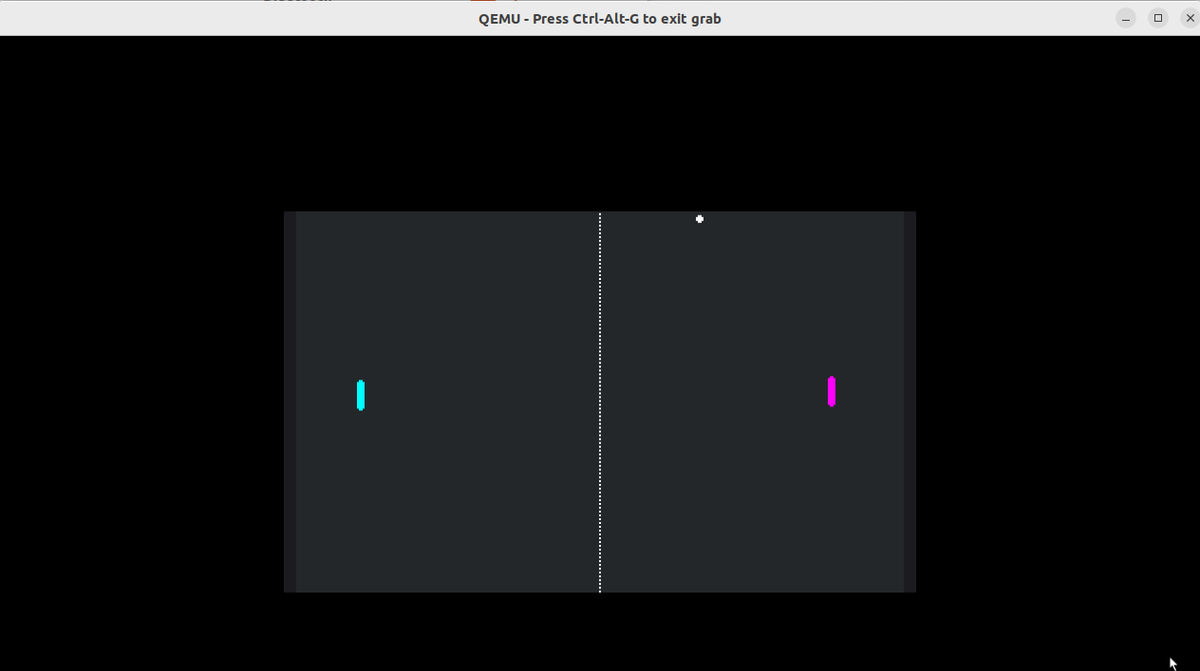
With the recent releases of QNX's Self-Hosted Developer Desktop, the open-source Godot game engine, ported to QNX, is now included in the image's APK package repo. This means we can now render some games and visualizations! The instructions below show you how to get started with a simple example.
Quick Start: Pong Example
The example we're using today is a simple Pong game, and it comes pre-built and ready to test.
Step 1: Clone the repo
Start by cloning the example repository to your development host.
git clone https://github.com/yulee-qnx/pong-qdd/Next, package the project so we can transfer it to the target running the Developer Desktop.
zip -r pong-qdd.zip pong-qddStep 2: Transfer to Developer Desktop target
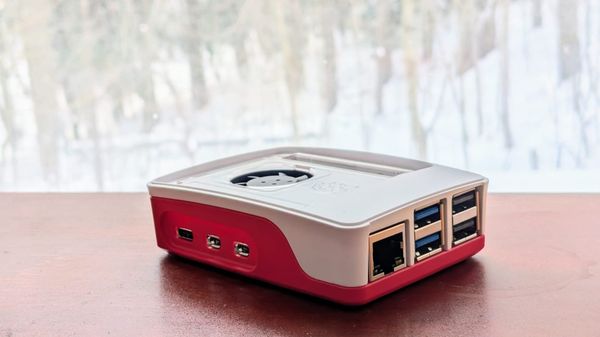
Your target may be a QEMU VM running the Developer Desktop, or (soon) it may be a Raspberry Pi 4 or 5 running the latest quick start target image for those devices.
You'll need the target's IP to transfer the ZIP file; get it by using $ ifconfig on the target.
Then, transfer the ZIP file to the target from your host, using:
scp pong-qdd.zip qnxuser@192.168.122.242:/data/home/qnxuserAnd then back on your target:
unzip pong-qdd.zipStep 3: Install Godot on your target
Make sure the Godot engine is available for your target, and install the latest version from the APK repository. On your target's terminal:
sudo apk search godot-templates
sudo apk add godot-templates
Step 4: Launch the Game
Now all that's left is to launch the game! From your target's terminal:
godot-template-release --path pong-qdd --rendering-driver opengl3_esYou may optionally want to create a shell script to more easily remember how to launch the game.
Game Controls
To play the game, use these controls:
- Player 1: W (up), S (down)
- Player 2: Up Arrow (up), Down Arrow (down)
- Exit Game: ESC key (uses proper shutdown sequence)
Take a look at the source code to see how these control inputs are handled.
Technical Limitations
- QNX Screen Support Only: applications must use QNX Screen only; no Wayland support.
- 2D Performance: 2D is fully supported with decent performance; ideal for most basic game projects for simple visualizations.
- 3D Performance: basic 3D rendering works with simplified scenes and optimized assets, though exiting the game while GPU-intensive effects are active may cause the system to become unresponsive.
- Audio Support: functions properly in Pi4 and Pi5 environments (available soon).
Conclusion
While the current Godot implementation for QNX Self-Hosted Developer Desktop has some limitations, particularly for 3D content, it provides a solid foundation for 2D game development. As development continues, more complex 3D games will be supported. Stay tuned!